Crawled, Currently Not Indexed: Why It Happens and How to Fix It
Seeing crawled currently not indexed in Search Console? Learn which statuses are normal and how to fix thin, duplicate and orphaned pages step by step.


In this article 12 sections
- Crawled, currently not indexed means Google read your page and chose not to index it for now, and it is not a penalty.
- Several not-indexed statuses, such as Page with redirect and Alternate page with proper canonical tag, are normal and need no fix.
- Thin, duplicate and orphaned pages are the usual causes on small blogs, and each has a clear step-by-step fix.
- Improve or merge the page and add internal links before you request indexing, not after.
- Google says validation typically takes up to about two weeks, so fix the page, request once and keep publishing.
Crawled, currently not indexed means Google visited your page, read it and decided not to add it to its search index for now, so it cannot rank for anything. It is not a penalty. The usual causes are thin content, duplicate URLs and weak internal linking, and all three can be fixed.
This guide explains every status a small blog usually sees in the Page indexing report, shows which ones are normal and which need work, and gives step-by-step fixes for thin, duplicate and orphaned pages. If terms like crawling and indexing are new to you, start with our beginner's guide to SEO.
What does "crawled, currently not indexed" mean?
Google handles every page in three stages. It discovers the URL, crawls it (downloads and reads the page), then decides whether to index it (stores it so it can appear in results). This status means your page passed the first two stages and stalled at the third.
Google's Page indexing report help page says a page with this status may or may not be indexed in the future, and that you don't need to resubmit it for crawling. In plain terms, Google has seen the page and isn't yet convinced it adds enough. Resubmitting it unchanged rarely changes that.
The word "currently" matters. This is a snapshot, not a final verdict, and pages move in and out of this status as Google recrawls them. Google's guide to how Search works also states that it doesn't guarantee it will crawl, index or serve any page, even one that follows its guidelines.
Crawled vs discovered, currently not indexed
The two statuses look alike but point to different problems.
| Status | What happened | Usual causes | First fix |
|---|---|---|---|
| Crawled, currently not indexed | Google fetched and read the page, then passed | Thin or duplicate content, weak internal links, wrong format for the search | Improve or merge the page, then add internal links |
| Discovered, currently not indexed | Google knows the URL but hasn't fetched it yet | Low crawl priority, slow hosting, too many low-value URLs | Add internal links, speed up hosting, cut junk URLs |
Google's help notes that discovered pages are often rescheduled because crawling them right then was expected to overload the site. On a small blog this usually signals low priority rather than real server strain, so internal links and patience do most of the work.
Which statuses in the Google Search Console Page indexing report are normal?
In Search Console, choose your property and go to Indexing, then Pages. The chart splits your URLs into indexed and not indexed, and the table under "Why pages aren't indexed" lists each reason with a count. If your site isn't connected yet, follow our Google Search Console setup guide first.
Not every row is a problem. Redirects, deleted posts and duplicate versions of pages should stay out of the index, so a healthy blog always shows some not-indexed URLs.
| Status | What it means | Normal or fix? |
|---|---|---|
| Page with redirect | The URL forwards to another page, which gets indexed instead | Normal |
| Alternate page with proper canonical tag | A duplicate correctly points to your main version | Normal |
| Excluded by 'noindex' tag | Your site told Google not to index it | Normal for tag archives and thank-you pages; fix if it's a real post |
| Not found (404) | The page doesn't exist | Normal for deleted posts; redirect it if it had links or traffic |
| Blocked by robots.txt | Your robots.txt file stops Google from crawling it | Normal for admin areas; fix if it's content |
| Duplicate without user-selected canonical | Google found copies and you haven't named a main version | Fix |
| Duplicate, Google chose different canonical than user | Google overrode the main version you named | Check and fix |
| Soft 404 | The page loads but looks empty or like an error | Fix |
| Server error (5xx) | Your server failed when Google visited | Fix with your host |
| Discovered, currently not indexed | Known but not yet crawled | Fix if it lasts weeks on important pages |
| Crawled, currently not indexed | Crawled but not chosen | Fix if the page matters to you |
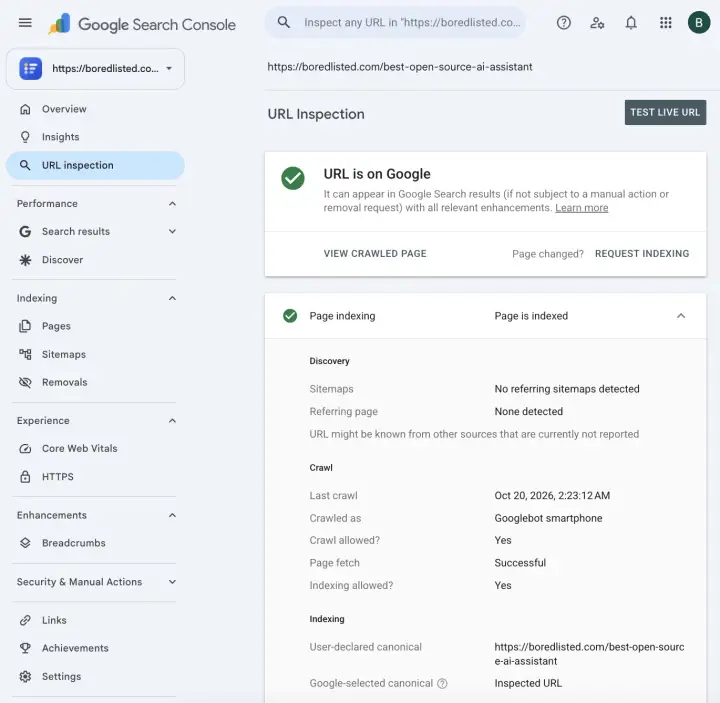
One quirk: the report can lag behind reality. Before fixing anything, paste the URL into the inspection bar at the top of Search Console. If it says "URL is on Google," the page is already indexed and you can move on.
Before you start: what you need
- A verified Search Console property. A Domain property is best because it covers the http, https, www and non-www versions of your site in one place.
- A submitted XML sitemap under Indexing, then Sitemaps.
- Edit access to your site, including your SEO plugin settings if you use WordPress.
- About an hour for a first pass on a blog with fewer than 100 posts.
What you'll end up with: a short list of pages to improve, merge, redirect or leave alone, plus a request for Google to recheck the ones you fixed.
Why is my page not indexed? Diagnose it in 4 steps
- Export the list. In the Page indexing report, click the Crawled, currently not indexed row and export the example URLs. It's a sample, so also check any important post you suspect is missing.
- Inspect a handful. Run 5 to 10 of those URLs through URL Inspection and expand the Page indexing section of each result.
- Group by pattern. Put each URL into one of four buckets: thin, duplicate, orphaned, or junk that should never be indexed.
- Fix by bucket. Start with pages that could realistically earn search traffic. For the junk bucket, the goal is simply to stop creating more of it.
Three fields in the inspection result do most of the diagnostic work. Referring page lists internal pages Google saw linking to the URL (an empty list hints at an orphan but isn't proof). User-declared canonical and Google-selected canonical point to duplicate trouble when they differ. Sitemaps shows whether your sitemap lists the page.
Use this table to sort what you find.
| Bucket | Typical signs | Best fix |
|---|---|---|
| Thin | Generic, less useful than the top results, nothing original | Improve, merge or remove |
| Duplicate | Same topic as another post, or one page at several URLs | Canonical tag, merge or 301 redirect |
| Orphaned | No internal links point to it; Google found it through the sitemap | Add contextual links from related posts |
| Junk URLs | Tag archives, internal search results, attachment pages, tracking parameters | Noindex them or stop generating them |
A quick test for any page: would someone searching Google be glad to land here instead of on the current top result? If the honest answer is no, the page is thin for that search, whatever its word count.
How do you fix thin pages?
Thin doesn't mean short. A 500-word answer to a narrow question can be indexed happily, while a 2,000-word post that repeats every other page may not be. Google's guidance on creating helpful, people-first content is the best checklist: original information, a complete answer and signs of real experience.
- Check search intent. Search the page's main keyword and study the top five results. If they're step-by-step guides and yours is a short opinion piece, the format is wrong, not just the length. Our guide to finding keywords you can rank for covers intent in more depth.
- Choose improve, merge or remove. If the topic deserves its own page, improve it. If another post covers the same ground, merge them (see the duplicate fixes below). If the page has no traffic, no links and no future, delete it or redirect it to the closest related post.
- Add what only you can add. Replace generic sentences with a worked example, a checklist, a template, figures from your own work or a clear recommendation. Answer the main question in the first paragraph.
- Fix the on-page basics. The title, headings, meta description and image alt text should all match the topic. Run through our on-page SEO checklist before you republish.
- Change the date only if you changed the substance. A new date on old content isn't an improvement, and readers notice.
Expected result: improved pages usually get recrawled within days to a few weeks, and faster once they have internal links. Some will still stay out. If a page is still excluded after two honest rewrites, merging it into a stronger post is usually the better call.
How do you fix duplicate pages?
Duplicates on small blogs come in two kinds: one page reachable at several URLs, and two posts covering the same topic.
One page, several URLs
Common culprits are http and https versions, www and non-www, trailing slashes, tracking parameters such as ?utm_source=, and WordPress attachment pages. Fix them in this order:
- Pick one preferred version of your site (https, with or without www) and 301-redirect every other version to it. A 301 is a permanent redirect your host or CMS can set up.
- Give every post a self-referencing canonical tag, such as
<link rel="canonical" href="https://example.com/your-post/">. Most SEO plugins add this automatically. - Turn off or redirect attachment pages and other auto-generated URLs in your SEO plugin settings.
- Make sure your sitemap lists only the canonical URLs.
Google's guide to consolidating duplicate URLs treats canonical tags as a strong hint rather than a command, which is why "Duplicate, Google chose different canonical than user" can appear. If you see it, check that your internal links, sitemap and redirects all point to the version you declared.
Two posts on the same topic
When two of your posts target the same search, Google often indexes one and skips the other. Merge them: move the best sections into the stronger URL, delete the weaker post, 301-redirect its address to the one you kept and update any internal links that pointed to it.
How do you fix orphaned pages?
An orphaned page has no internal links pointing to it. Google may still find it through your sitemap, but a page your own site never links to looks unimportant, which makes it an easy one to skip.
- Find them. In Search Console, open Links and check Top linked pages under Internal links. Any post from your sitemap that's missing from that list, or shows only one or two links, needs help.
- Pick 2 to 4 related posts that are already indexed and get some clicks (check Performance, then Search results).
- Add one contextual link from each, inside the body text, with a descriptive anchor such as "fix duplicate WordPress URLs" rather than "read more."
- Add the page to its category or hub page so it's only a few clicks from your homepage.
- Confirm it's in your XML sitemap.
To make this routine for every new post, use our simple internal linking system. Pages that gain relevant links tend to get recrawled sooner, and those links give Google a reason to keep them.
How do you ask Google to recheck a fixed page?
Only ask once the page has actually changed. Then:
- Paste the URL into URL Inspection and click Test live URL to confirm Google can fetch it and sees no noindex tag.
- Click Request indexing. There's a daily limit on requests, so save them for your most important pages.
- For a group of fixed pages, open that status in the Page indexing report and click Validate fix.
Google's Page indexing help says validation typically takes up to about two weeks and sometimes much longer. Requesting indexing again on the same URL doesn't speed things up, so spend the wait publishing and linking.
What mistakes keep pages out of the index?
- Requesting indexing over and over on a page you haven't improved.
- Blocking duplicates in robots.txt. Google can't see a noindex or canonical tag on a page it isn't allowed to crawl, so the URL can linger.
- Sending mixed signals, such as a noindex page that's also in your sitemap, or a canonical that points to a redirected URL.
- Mass-publishing thin AI drafts. Google's spam policies treat pages mass-produced mainly to rank, rather than to help people, as scaled content abuse. Even below that bar, a pile of thin posts gives Google little reason to index more of your site.
- Deleting posts with backlinks without redirecting them to a related page.
- Treating every not-indexed row as an emergency. Redirects, canonical alternates and intentional noindex pages belong there.
- Writing without a plan. Outlining each post with a short content brief helps you cover the topic fully the first time.
Frequently asked questions
How long does it take Google to index a new page?
Does crawled, currently not indexed mean my site has a Google penalty?
Should I delete pages that Google won't index?
Can AI-written content get indexed by Google?
Why does Search Console say a page isn't indexed when I can find it on Google?
Does submitting a sitemap guarantee my pages get indexed?
The bottom line
Crawled, currently not indexed is Google saying "not yet," not "never." Ignore the statuses that are supposed to be there, then work through the pages that matter: improve or merge thin posts, consolidate duplicates and give orphaned pages real internal links before you ask Google to look again.
Your next step: open the Page indexing report today, export the crawled list and inspect your five most important URLs. Fix the weakest one first, then request indexing once it has genuinely changed.
Sources
Facts checked as of October 19, 2026.
- Google Search Console Help: Page indexing report support.google.com
- Google Search Console Help: URL Inspection tool support.google.com
- Google Search Central: Creating helpful, reliable, people-first content developers.google.com
- Google Search Central: How to specify a canonical URL developers.google.com
- Google Search Central: In-depth guide to how Google Search works developers.google.com
- Google Search Central: Spam policies for Google web search developers.google.com
Free for subscribers
Get the free Career Prompt Vault
Fill-in-the-blank AI prompts for your resume, cover letter, LinkedIn and interviews. Works with ChatGPT, Claude and Gemini.