Samsung AI Assistant Explained: Bixby vs Gemini on Galaxy
Samsung AI assistant guide: what Bixby and Gemini each do on a Galaxy phone, how to switch the side button, and which Galaxy AI features are free.


In this article 10 sections
- Gemini is the default assistant on the side button of Galaxy phones running One UI 7 or later.
- Bixby still handles device settings best, and the One UI 8.5 version adds Perplexity-powered web answers in select markets.
- You can change the side button long press in Settings, under Advanced features and Side button.
- Samsung says its basic Galaxy AI features are free, while Gemini has a free tier plus paid Google plans.
- Most people get the best results by keeping Gemini on the side button and using Hi Bixby for quick device control.
The main Samsung AI assistant on a Galaxy phone today is Google's Gemini, which opens when you press and hold the side button and handles questions, writing and multi-step tasks. Bixby, Samsung's own assistant, still runs phone settings and device controls. You can choose which one the side button opens in Settings.
That split confuses a lot of new Galaxy owners, so this guide lays out what each assistant is good at, how to switch between them, and which features rely on which AI models. If you want to see how Samsung's options stack up against Siri, Alexa and Copilot, start with our roundup of the best AI voice assistants.
Bixby vs Gemini at a glance
Here is the short version. Bixby knows your phone. Gemini knows the wider world and Google's apps. Most people end up using both.
| Criteria | Bixby | Gemini |
|---|---|---|
| Made by | Samsung | |
| Best at | Settings, device controls, Samsung features | Questions, writing, summaries, tasks across apps |
| How to open it | "Hi Bixby," the Bixby app, or the side button if you assign it | Side button (the default on recent One UI), "Hey Google," or the Gemini app |
| Live web answers | Yes, powered by Perplexity in One UI 8.5 (select markets) | Yes, using Google Search |
| Works with Google apps | Limited | Deep: Gmail, Maps, YouTube, Calendar and more |
| Cost | Free | Free, with extra features on a paid Google AI plan |
| Available on | Galaxy phones and tablets only | Most Android phones, including Galaxy |
The default changed with One UI 7. According to Samsung's support page on the side button, pressing and holding the button now opens Gemini by default, and you can switch it back to Bixby whenever you like.
Which assistant answers which request?
The easiest way to think about it: if the request is about your phone, ask Bixby. If it is about information, words or Google services, ask Gemini. Some everyday requests work well with either.
| What you say | Best pick | Why |
|---|---|---|
| "Turn on power saving and lower the brightness." | Bixby | It changes system settings directly, even several at once. |
| "My screen is hard to read at night." | Bixby | The new Bixby can match a described problem to the right setting. |
| "Summarize the article on my screen." | Gemini | It can read what is on screen and condense it. |
| "Draft a polite reply saying I'll be late." | Gemini | Writing and tone are its strengths. |
| "Find the email with my flight details." | Gemini | It connects to Gmail and other Google apps. |
| "What's the weather this weekend?" | Either | Both can pull live answers from the web. |
| "Set a reminder to call Mom at 6 pm." | Either | Both work with Samsung Reminders on supported phones. |
A good habit is to phrase requests the way you would to a person. Both assistants now understand natural language, so "make my phone last until tonight" works better than hunting for the exact menu name.
What changed with the new Bixby in One UI 8.5?
For years, Bixby was the assistant many people switched off. That changed in 2026. In its announcement, Samsung introduced the new Bixby in One UI 8.5 as a more conversational device agent that understands what you mean rather than exact commands.
The key upgrades are:
- Natural conversation. You can describe a problem and Bixby suggests or changes the right setting, without you knowing where it lives.
- Real-time web answers. Bixby now uses Perplexity for questions that need current information from the internet.
- Limited rollout. Samsung says the update is available in select markets, including the US, the UK, Germany, India, Korea and Poland, with more to follow.
The Galaxy S26 series also added Perplexity as a separate, third assistant that you can assign to the side button. Its wake phrase has changed since launch, so check the Perplexity app's settings on your phone rather than relying on older guides.
If your phone runs an older One UI version, or you live outside the launch markets, you will still have the older Bixby. It handles settings and Samsung apps well but gives weaker general answers. In that case, Gemini is the better everyday assistant.
How do you switch the default assistant on a Galaxy phone?
There are two separate settings, and most confusion comes from mixing them up. The side button setting decides what a long press opens. The default digital assistant app decides which assistant Android uses system-wide.
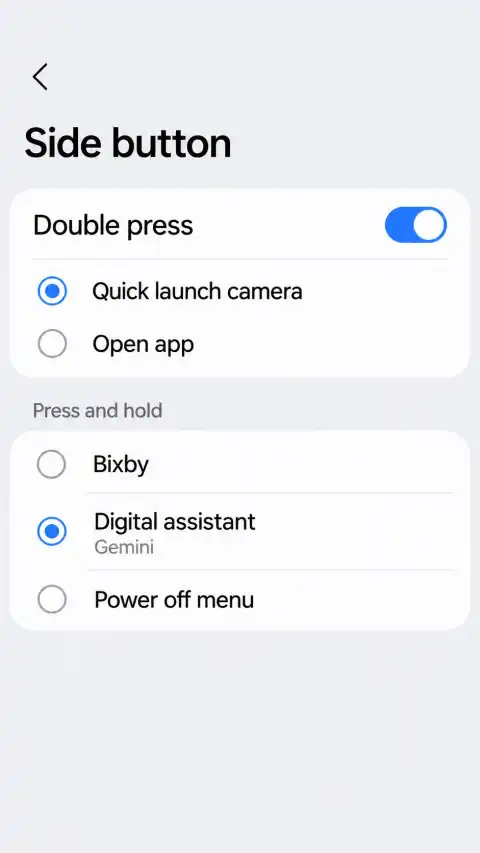
Change what the side button opens
- Open Settings and tap Advanced features.
- Tap Side button.
- Under Press and hold, choose Bixby, your digital assistant (Gemini), or the power off menu.
You can also get there from the Bixby app: open it, tap the settings icon, then choose the side button settings.
Change the default digital assistant app
- Open Settings, then Apps.
- Tap Choose default apps, then Digital assistant app.
- Pick Google (Gemini) or another installed assistant.
Bixby does not appear in this list. It runs through its own wake phrase, its app and the side button instead. Menu names can differ slightly by One UI version and region, so use the search bar in Settings if a step looks different.
The two-assistant setup
Many Galaxy owners get the best of both by leaving Gemini on the side button and turning on "Hi Bixby" voice wake-up for settings changes. That way, a long press gives you a capable chatbot, and a quick voice command still toggles Wi-Fi, modes or brightness hands-free.
Which features need which AI models?
"Galaxy AI" is a brand, not a single model. Some features come from Samsung, some from Google and some from partners. That matters because it decides what is free, what needs which account and what might change later.
| Feature | Who provides it | What it needs | Cost |
|---|---|---|---|
| Bixby device control | Samsung | Samsung account | Free |
| Bixby web answers | Samsung, with Perplexity search | One UI 8.5, internet, a launch market | Free |
| Samsung Galaxy AI tools (Live Translate, Note Assist, Audio Eraser) | Samsung | Supported Galaxy device; some need a Samsung account and internet | Free basic features |
| Gemini app and Gemini Live | Google account, internet | Free tier, more with a paid Google AI plan | |
| Circle to Search | Internet | Free |
On pricing, the Galaxy AI page on Samsung's US site says the basic Galaxy AI features Samsung provides are free, while new or enhanced features could cost extra later. That promise covers Samsung's own tools, not features run by Google or other partners.
Gemini follows Google's rules instead. The free version covers everyday questions and Gemini Live conversations, while a paid plan unlocks Google's most capable models and higher limits. Our guide to Gemini free vs paid plans breaks down whether the upgrade is worth it, and our explainer on how Google's Gemini works covers the basics.
Which Samsung AI assistant should you use?
There is no single winner. Pick based on what you do most:
- You mostly write, research or live in Google apps: keep Gemini on the side button. It is the strongest general assistant on the phone.
- You change settings constantly or drive a lot: turn on "Hi Bixby" for quick, hands-free device control.
- You have the new Bixby in One UI 8.5: try it on the side button for a week. Its live web answers make it a real alternative for quick questions.
- Your phone is older or outside the launch markets: use Gemini as your main assistant and Bixby only for routines and settings.
- You care most about privacy: review each assistant's activity and history settings, since Samsung and Google store data under separate accounts and policies.
If your household mixes devices, it helps to know the other side too. Apple users can read what Apple's new Siri can do, and Windows users can compare with Microsoft's Copilot assistant.
Is there a better AI assistant for Android than Gemini?
For most people on a Galaxy phone, no. Gemini and Bixby have the deepest access to the system, so they can open apps, change settings and act on what is on screen. That is the real advantage of a built-in assistant.
You can still install another AI assistant for Android, such as ChatGPT, Copilot or Alexa, and some can be set as the default digital assistant app. They are excellent chatbots, but they usually cannot control your phone as fully. If you mainly want better answers rather than device control, our comparison of the best AI assistant apps covers the leading options.
Frequently asked questions
Is Bixby being replaced by Gemini?
Can I set Bixby as the default digital assistant app?
Do I have to pay for Galaxy AI?
Does the new Bixby work in my country?
Which Galaxy phones have Gemini on the side button?
The bottom line
On a Galaxy phone, Gemini is the default Samsung AI assistant for questions, writing and Google apps, while Bixby remains the fastest way to control the phone itself. The new Bixby in One UI 8.5 narrows the gap with live web answers, but only in select markets so far.
Your next step: open Settings, go to Advanced features, then Side button, and set the long press to the assistant you use most. Then turn on the other one's wake phrase so you have both a click or a word away.
Sources
Facts checked as of November 3, 2026.
- Samsung: Why does Gemini work instead of Bixby when pressing and holding the side button in One UI 7? samsung.com
- Samsung Newsroom: Samsung Introduces the New Bixby in One UI 8.5 news.samsung.com
- Samsung: Galaxy AI samsung.com
- Samsung: Bixby samsung.com
Free for subscribers
Get the free Career Prompt Vault
Fill-in-the-blank AI prompts for your resume, cover letter, LinkedIn and interviews. Works with ChatGPT, Claude and Gemini.
You’re in.
Unlocked. Every prompt in the vault is yours.
Check your inbox to confirm your subscription.
Open the Career Prompt Vault