How to Update PHP Version in WordPress: PHP2Shell Checklist
Learn how to update PHP version in WordPress: check it in Site Health, back up, switch in cPanel and confirm your host installed the PHP2Shell fixes.


In this article 11 sections
- You can see your exact PHP version in WordPress under Tools > Site Health > Info > Server.
- The PHP2Shell fixes shipped on October 21, 2026, in PHP 8.5.12, 8.4.27, 8.3.36 and 8.2.35.
- Always back up your files and database and update your plugins before you switch PHP versions.
- Switching the branch in cPanel is only half the job, so confirm the full patch number afterward.
- PHP 8.2 stops getting security fixes on December 31, 2026, so plan a move to 8.3 or newer.
To update the PHP version in WordPress, find your current version under Tools > Site Health > Info > Server, make a full backup, then choose a newer version in your hosting panel, usually cPanel's Select PHP Version or MultiPHP Manager. Finally, reload your site and confirm your host runs a patched build.
What is PHP2Shell, and does it affect your WordPress site?
PHP2Shell is the nickname for two critical PHP security flaws, CVE-2026-109618 and CVE-2026-109619. On October 21, 2026, the PHP team shipped fixed releases and warned that the flaws can allow unauthenticated remote code execution, which means an attacker could run code on a server without logging in. The PHP 8.5.12 release notes urge every user to update right away.
WordPress runs on PHP, so every self-hosted WordPress site sits on top of one of these PHP builds. The fix is not a WordPress update or a plugin. It lives on the server, which means either you or your host has to install it.
The patched releases are 8.5.12, 8.4.27, 8.3.36 and 8.2.35. If your site shows one of those numbers, or a higher one in the same branch, you are on a fixed build. Anything lower, or any branch older than 8.2, needs attention.
If you use WordPress.com or a fully managed WordPress host, the provider normally patches PHP for you. On shared hosting, which is common if you started a money-making blog on a budget plan, you usually pick the PHP version yourself while the host installs the patch releases behind it.
How do you check your PHP version in WordPress?
The fastest way is built into WordPress, and you only need an administrator account.
- Log in to your WordPress dashboard.
- Go to Tools > Site Health.
- Click the Info tab at the top.
- Expand the Server section.
- Read the row labeled PHP version.
You will see something like 8.3.36 (Supports 64bit values). The first two numbers are the branch (8.3), and the last number is the patch level (36). Write the full number down, because you will compare it with the patched builds later.
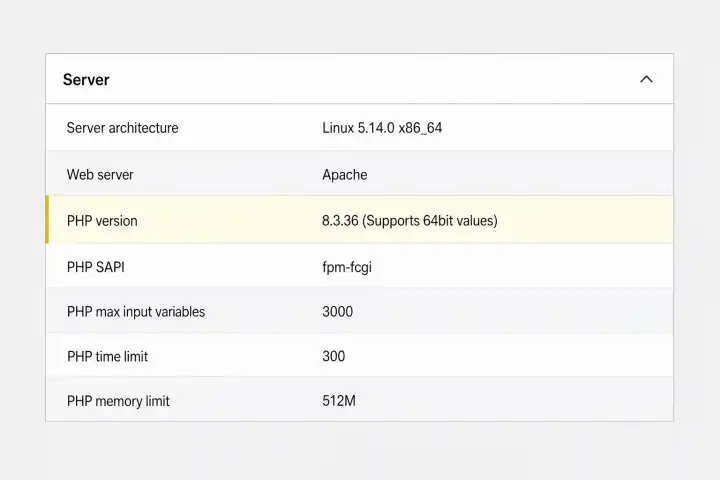
The Site Health Status tab may also warn that your site runs an outdated PHP version. Treat that warning as a to-do, not a crisis, but don't leave it for months.
Other ways to check your PHP version
If you can't reach the dashboard, you can still check the PHP version WordPress runs on:
- Hosting panel: cPanel shows the active version in Select PHP Version or MultiPHP Manager.
- Host support: ask the support team for the exact version and patch level.
- Command line: with SSH access,
php -vprints a version, but the command-line PHP can differ from the one serving your website, so trust Site Health first.
Which PHP version should you switch to?
Pick a branch that still gets security fixes and that your theme and plugins support. Each PHP branch gets two years of active support, then two more years of security-only fixes, according to the official PHP supported versions page.
| PHP branch | PHP2Shell fix | Security fixes until | What to do |
|---|---|---|---|
| 8.5 | 8.5.12 | Dec 31, 2029 | Good choice if your plugins support it |
| 8.4 | 8.4.27 | Dec 31, 2028 | Safe default for most blogs |
| 8.3 | 8.3.36 | Dec 31, 2027 | Fine for now, plan your next move |
| 8.2 | 8.2.35 | Dec 31, 2026 | Patch now, move off before year end |
| 8.1 and older | No fix released | Already ended | Upgrade as soon as possible |
For most blogs, PHP 8.3 or 8.4 is the practical sweet spot: well supported and widely tested by plugin developers. PHP 8.5 is fine if your host offers it and your plugins list it as compatible. Check the WordPress hosting requirements page for the version WordPress currently recommends, since it changes over time.
What should you do before you update PHP?
Changing PHP rarely breaks a well-maintained site, but one outdated plugin can throw errors on a newer branch. Spend ten minutes on these prerequisites first.
- Take a full backup. Back up both your files and your database with your host's backup tool or a backup plugin, and download a copy to your computer.
- Update WordPress, themes and plugins. Newer releases are far more likely to support newer PHP.
- Remove what you don't use. Delete inactive plugins and themes. Abandoned code is a common source of PHP errors.
- Check plugin compatibility. On each plugin's WordPress.org page, look at the Requires PHP line and the last updated date. A plugin untouched for years is a red flag.
- Use staging if you have it. Many hosts offer a one-click staging copy. Switch PHP there first and test.
- Pick a quiet time. Make the change when traffic is low and you have 30 minutes to check things.
How do you update your PHP version in cPanel?
Many shared hosts in the US and UK use cPanel, but they expose PHP through one of two tools. Look in the Software section for whichever your host provides.
Option 1: Select PHP Version
This tool appears on hosts that run CloudLinux, and it is the cPanel Select PHP Version screen most budget-plan bloggers will see.
- In cPanel, open Software > Select PHP Version.
- Find the Current PHP version dropdown at the top.
- Choose the new branch, for example 8.3 or 8.4.
- Click Set as current.
- Leave the extension checkboxes alone unless your host or a plugin tells you otherwise.
Expected result: the page confirms the new version, and your site starts using it within a minute or so.
Option 2: MultiPHP Manager
This is cPanel's built-in tool, and it lets you set a version for each domain separately.
- Open Software > MultiPHP Manager.
- Tick the checkbox next to your WordPress domain.
- Choose the new version from the PHP Version dropdown.
- Click Apply.
Expected result: the domain's row shows the new version. If you run several sites, repeat the steps for each one.
If your host doesn't use cPanel
Plesk and custom hosting dashboards usually call the setting PHP version or PHP settings. Managed WordPress hosts often place it under site tools. If you can't find it, open a support ticket, since most hosts will change it for you quickly.
How do you confirm the update worked?
Switching the branch is only half the job. With PHP2Shell, the patch level matters just as much, because your host has to install the fixed build behind the version you picked.
- Open your homepage, a post and a page in a private browser window.
- Log in and click through the dashboard, the editor and any forms or checkout pages.
- Return to Tools > Site Health > Info > Server and read the PHP version again.
- Compare it with the patched builds: 8.5.12, 8.4.27, 8.3.36 or 8.2.35, or higher in the same branch.
If your number is lower, the host hasn't rolled out the patch yet. Ask them directly. You can copy this message:
Hi, I run a WordPress site on my hosting account with you. Can you confirm that the PHP builds on my server include the October 21, 2026 security releases (8.5.12, 8.4.27, 8.3.36 or 8.2.35) that fix CVE-2026-109618 and CVE-2026-109619? If not, when do you expect to install them? Thank you.
Over the next week, keep an eye on the Pages and Security issues reports in Google Search Console, which can flag crawl errors or hacked content early.
It also helps to run your main pages through a free SEO page audit. It can catch broken or slow pages that a quick visual check might miss.
What are the most common mistakes when changing PHP versions?
Most PHP update problems come from skipping a step, not from PHP itself. Here is what to watch for.
| Mistake | What happens | What to do instead |
|---|---|---|
| Skipping the backup | A plugin error leaves you with no easy way back | Back up files and database first |
| Jumping from 7.4 straight to 8.5 | Old plugins rely on removed features and fail | Update plugins first and test on staging |
| Trusting the dropdown alone | The branch is right, but the build may be unpatched | Check the full number in Site Health |
| Toggling extensions at random | Image uploads, caching or email can stop working | Keep the defaults unless told otherwise |
| Panicking at a white screen | The site stays down longer than needed | Switch back first, then investigate |
If you see a critical error after switching, go straight back to cPanel and select your previous version. The site should return within a minute or two. WordPress also emails the admin address a recovery mode link when a plugin causes a fatal error, so you can log in and deactivate the culprit.
A smooth update pays off beyond security. Newer PHP branches generally run WordPress faster, and fast, reliable pages are part of the SEO basics for beginners.
What does the PHP 8.2 end-of-life date mean for you?
PHP 8.2 reaches end of life on December 31, 2026. After that date, the PHP project stops releasing security fixes for it, so the next serious flaw found in PHP would stay open on 8.2 servers.
If PHP2Shell left you on 8.2.35, you are covered for now, but treat that patch as a stopgap. Schedule a move to 8.3 or 8.4 before the end of the year, ideally after testing on staging.
A simple habit keeps this calm: check your PHP version every few months and add it to your yearly upkeep list alongside backups and plugin reviews. Boredlisted's upcoming WordPress maintenance checklist will cover that full routine.
Frequently asked questions
Will updating PHP break my WordPress site?
Can I update PHP from the WordPress dashboard?
Is PHP 7.4 still safe to use in 2026?
How do I switch back to my old PHP version?
What is PHP and why does WordPress need it?
How often should I check my PHP version?
The bottom line
Updating PHP in WordPress is a short job: read your version in Site Health, back up, switch the branch in cPanel's Select PHP Version or MultiPHP Manager, then confirm the full number matches a patched PHP2Shell build. For most blogs, the only visible change is peace of mind.
Your next step is simple. Open Tools > Site Health right now and write down your PHP version. If it is below a patched build, back up today and make the switch, or send your host the message above. For more practical guides on running your blog, browse the Content & Marketing guides.
Sources
Facts checked as of October 22, 2026.
Free for subscribers
Get the free Career Prompt Vault
Fill-in-the-blank AI prompts for your resume, cover letter, LinkedIn and interviews. Works with ChatGPT, Claude and Gemini.
You’re in.
Unlocked. Every prompt in the vault is yours.
Check your inbox to confirm your subscription.
Open the Career Prompt Vault